Revit How To Render Realistic Interiors a Practical Guide
Learn revit how to render photorealistic interiors. This guide covers materials, lighting, and settings for stunning, true-to-life visuals.
Learning how to render in Revit isn't just about hitting the "Render" button. The real magic starts long before that. It’s a process that begins with a well-organized model, a thoughtfully placed camera, and the right view settings. Nailing this foundation is what separates a decent render from a truly stunning one.
Building Your Foundation for Flawless Revit Renders
Every great visualization I've ever produced started with a clean, optimized model. This isn't the most glamorous part of the job, but skipping it will cost you hours of frustration later. Think of it as mise en place for architects—get all your ingredients prepped before you start cooking.
Your first move should always be to clean up the model. Hide any worksets, categories, or random elements that won't show up in your final shot. Does the viewer need to see the HVAC system above the ceiling or the rebar in the concrete? Probably not. Hiding them tells Revit to ignore that data, which can seriously speed up everything from navigating the viewport to the final render time.
Composing the Perfect Shot
Once your model is tidy, it's time to become a photographer. Your camera angle is your primary storytelling tool. It dictates the mood and guides the viewer's eye.
Getting down low can make a room feel vast and dramatic. An eye-level view, on the other hand, feels more personal and relatable, as if you're actually standing in the space. Just be careful not to place your camera somewhere impossible, like halfway through a wall. It's a small mistake that instantly shatters the illusion.
To really dial in your composition, get familiar with the Crop Region and Section Box. These tools are your best friends. Use them to frame your shot precisely, cutting out all the peripheral noise. This not only cleans up your composition but also gives Revit a huge performance boost by telling it to ignore everything outside the box.
This simple diagram breaks down the workflow I follow for every project. It's all about moving from the big picture to the small details in a logical order.
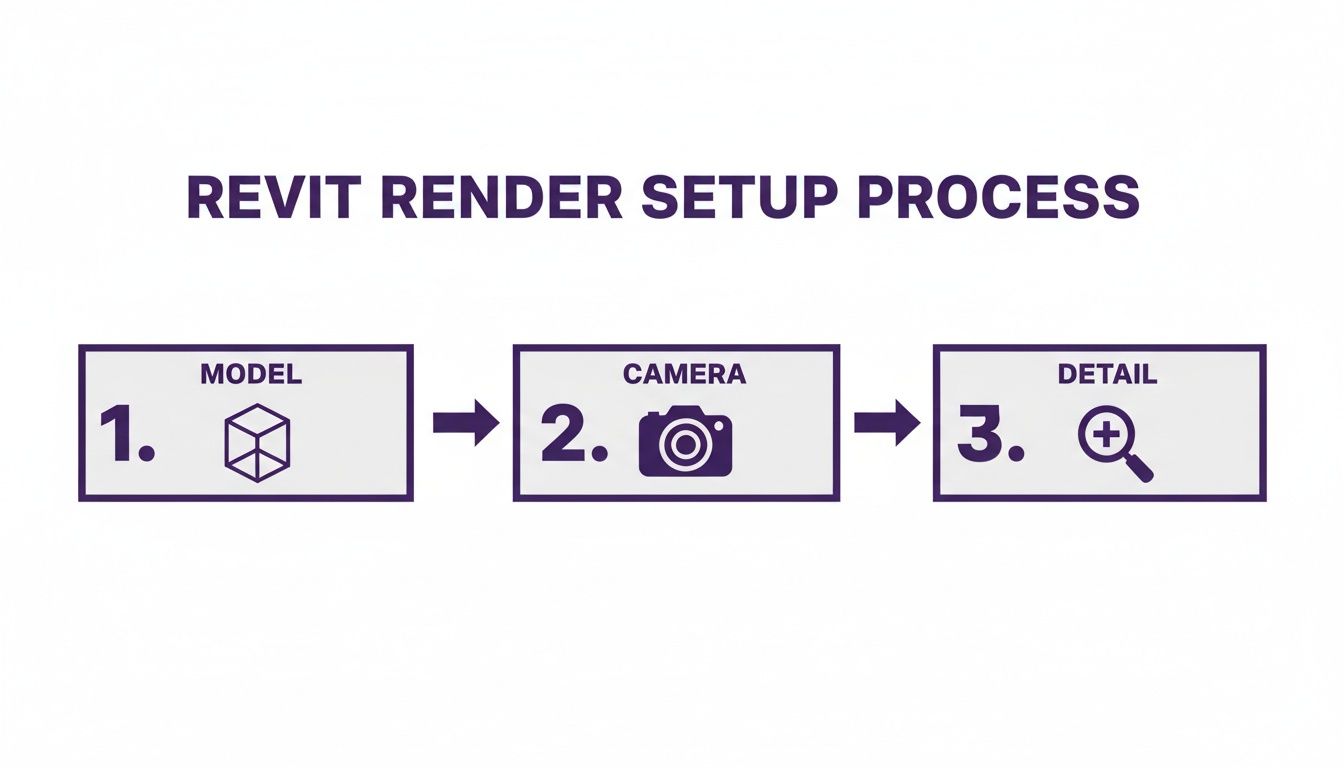
Stick to this sequence—Model, Camera, and Detail—and you’ll build a solid, efficient workflow that works every time.
Why Detail Level Is Crucial
Here's a tip that’s non-negotiable for high-quality work: always, always set your view's Detail Level to 'Fine'.
The lower settings, 'Coarse' and 'Medium', are great for general drafting because they simplify geometry to keep Revit running smoothly. But for rendering, they're a disaster. They will turn your beautifully detailed models into blocky, unrecognizable shapes.
I learned this the hard way. Imagine spending hours modeling a classic piece, like an Eames Lounge Chair for a mid-century modern project, only to have it render like a chunky armchair from a video game. Setting the detail level to 'Fine' ensures every curve, seam, and piece of hardware is visible, which is absolutely critical for a believable image.
Getting this foundation right in Revit is a fantastic skill. For those curious about how Revit fits into the broader toolkit, you might find our guide on what software do interior designers use helpful for context.
Getting Materials and Textures Just Right
Let’s be honest: materials are what bring a render to life. They're the difference between a sterile, digital model and a space that feels real and has some character. If you want to get good at rendering in Revit, you have to move past the default material library and start tweaking things yourself.
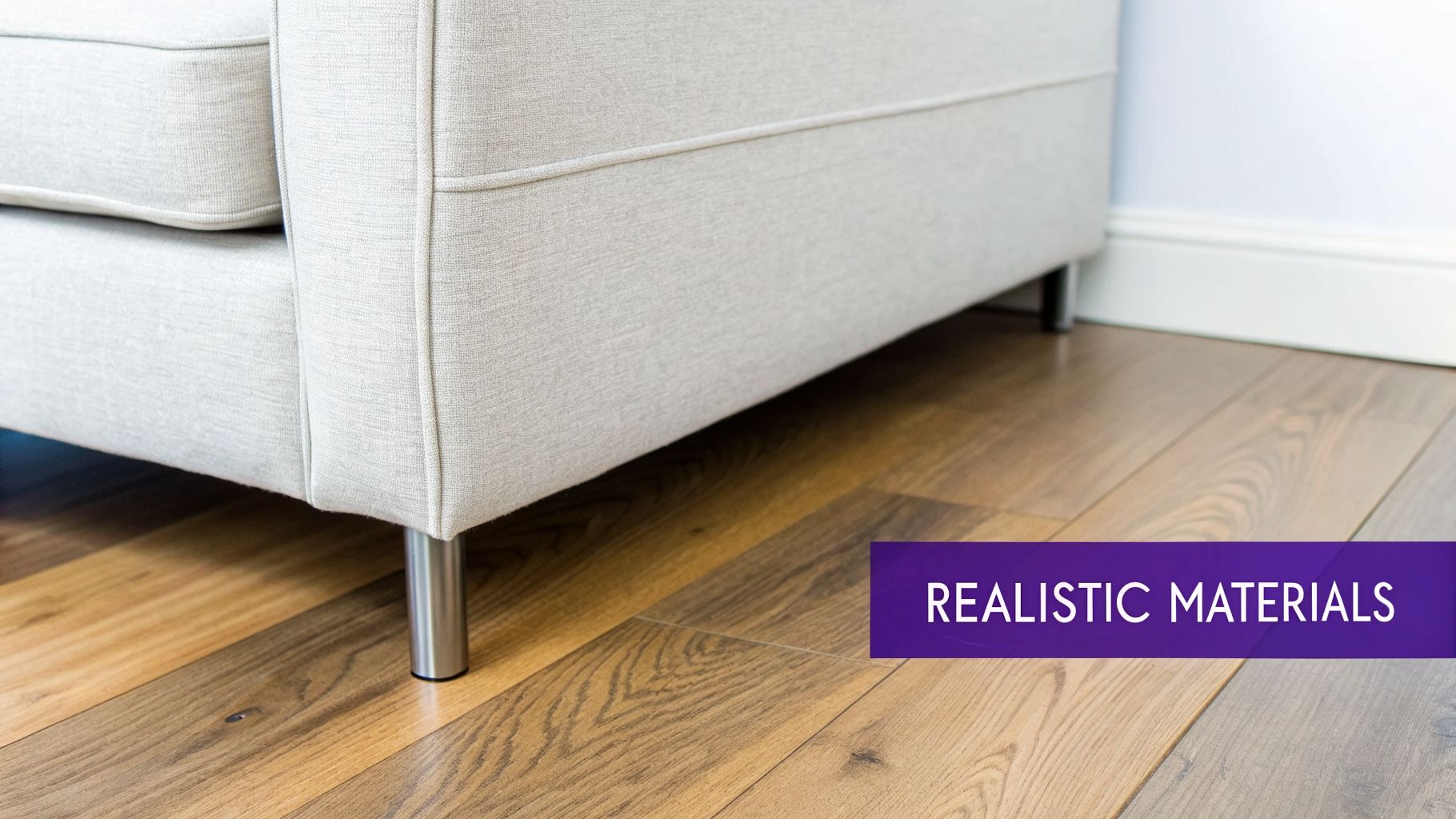
The Revit Material Browser is your command center for this. Specifically, you'll be spending most of your time in the Appearance tab. This is where all the visual magic happens—controlling everything from the base color and shininess to the physical texture and bumps on a surface.
Building Realistic Surfaces from Scratch
Think about creating a convincing white oak floor for a modern farmhouse project. You wouldn't just slap a brown color on it and call it a day. For it to look real, you need a specific wood grain texture (the diffuse map), some subtle reflections, and a bump map to give it that slight texture you'd feel under your feet. All of these settings live in the Appearance tab.
The same goes for smaller details. A brushed brass finish on a Kohler Purist faucet needs a totally different setup than polished chrome. This is where knowing your material types really matters:
- Generic: This is your workhorse for most things that aren't metal—wood, fabric, plaster, stone, you name it. It gives you the essential controls for color, reflectivity, and transparency.
- Metallic: Save this one for your metals. It offers specific controls designed for metallic finishes, giving you a much more physically accurate result of how light bounces off them.
Matching Real-World Products with Custom Materials
Here's a pro tip that can make a huge difference: import your own textures to match actual products. Say your client is set on a particular sofa from Restoration Hardware for their grandmillennial-inspired living room. You can often find a high-quality, seamless image of that exact fabric online.
Just save that image and load it into the 'Image' field under the 'Generic' section in the Appearance tab. Suddenly, your render isn't just showing a sofa; it's showing the sofa. This simple step makes your visuals more powerful, persuasive, and true to the final design.
While Revit's material tools are solid, they can be a major time sink, especially when you're chasing photorealism. For faster visualization, AI platforms are a game-changer. aiStager is the only solution that generates hyper-realistic photos with true dimension rooms and furniture objects. It's great to test different types of the same product, like different sofa brands, or even different colors and finishes of the same sofa. In just a few clicks, you can place a new product in a room just by uploading a photo of the room and a link to the product.
Even though native Revit rendering involves this manual setup, understanding these principles is the foundation for creating truly authentic visuals. For designers who want to explore even more advanced techniques, checking out different approaches for interior design renders can spark new ideas. Mastering materials is a journey, but it’s one that pays off with every stunning render you produce.
Bringing Your Scene to Life with Light
Lighting is what turns a good render into a great one. It’s the difference between a sterile digital model and a space that feels real, warm, and lived-in. If you want to master how to render in Revit, getting the lighting right is arguably the most critical skill you can develop.
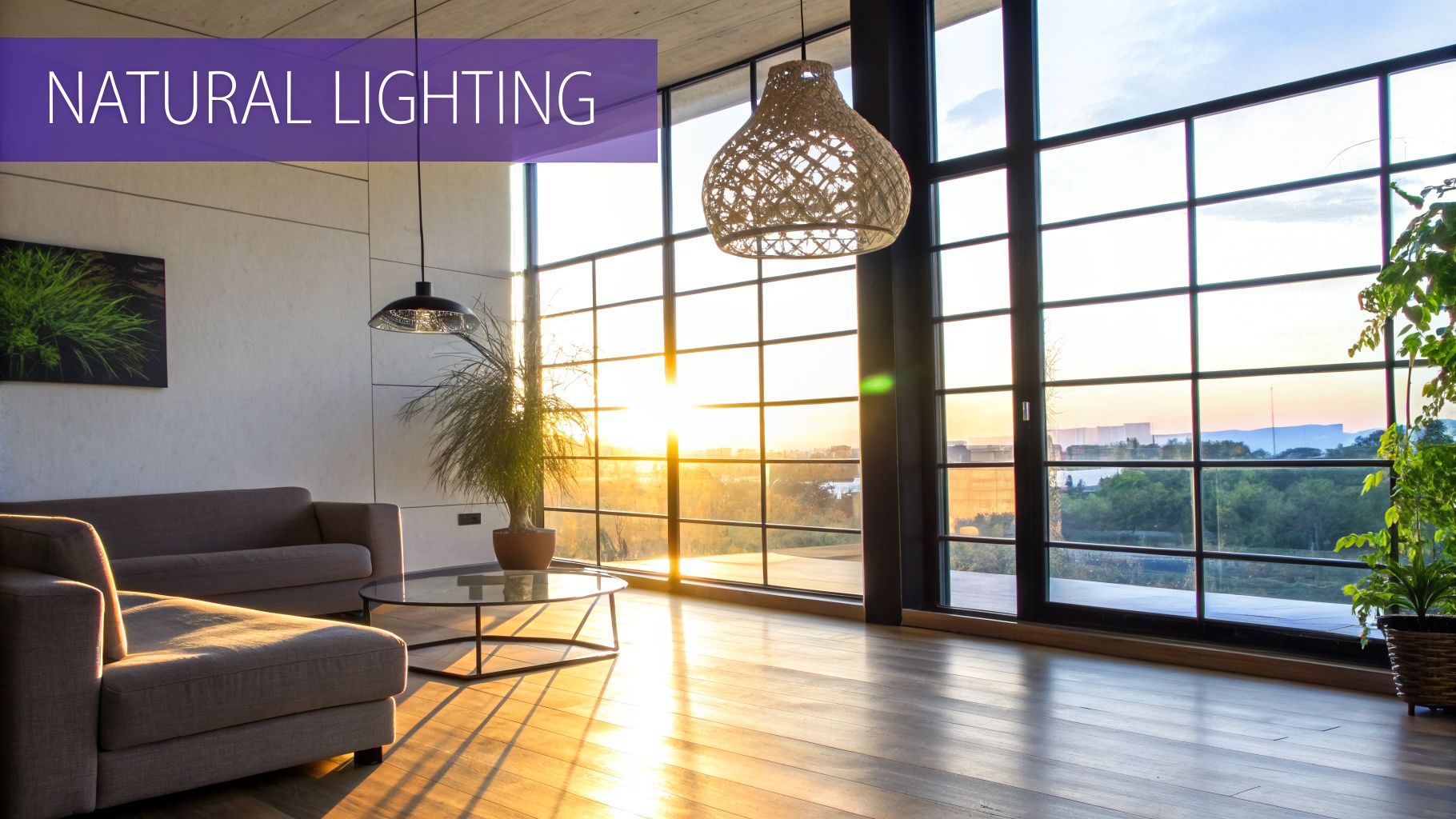
I always start with natural light. Revit’s Sun Settings are surprisingly robust, letting you simulate the sun’s exact position anywhere in the world, on any day, at any time. This is how you create those long, dramatic shadows that give a scene real depth and authenticity.
Combining Natural and Artificial Light
Think about the mood you're after. For a clean, minimalist Japandi living room, I might set the sun to a mid-morning position to get that crisp, bright light that makes natural wood and simple decor pop. For a cozy, modern organic design, a late afternoon sun is perfect for casting long, soft shadows and filling the room with a warm, inviting glow.
Once the sun is in place, it’s time to add the artificial lights. This is where you really get to sculpt the atmosphere.
- Place Your Light Fixtures: Start by dropping in your light fixture families from your library. This could be anything from recessed cans and track lighting to a statement pendant over a kitchen island or a simple floor lamp in a reading nook.
- Tweak the Light Properties: Select each light source to dial in its settings. The two most important are Initial Intensity (how bright it is) and Initial Color (the color temperature, from a cool, modern blue to a warm, traditional yellow).
- Use Light Groups for Easy Control: In a complex room with dozens of lights, don't try to manage them one by one. Use Revit's light groups. This lets you turn on, turn off, or dim entire sets of lights at once, making it incredibly easy to test different lighting schemes.
Understanding how to place lights in Revit is one thing, but knowing why is another. The impact of lighting choices on a room's mood and function is a core architectural principle, and it applies just as much to virtual renders as it does to physical spaces.
Looking Beyond Revit’s Native Tools
While Revit’s built-in renderer gets the job done, the industry is moving toward much faster and more powerful solutions. The global market for GPU cloud rendering hit an estimated USD 1.2 billion in 2024, which tells you everything you need to know about the demand for speed. This push for GPU-accelerated and AI-driven workflows is a huge reason the architectural visualization market is projected to reach USD 10.72 billion by 2030.
This is where AI-powered tools completely change the game. With a solution like aiStager, for example, you can iterate on product selections at a speed that's just not possible with traditional rendering. Think about showing a client a Crate & Barrel Boucle Sofa in three different colors, or swapping it out for a similar model from Article in a matter of seconds. Because aiStager is the only solution that generates hyper-realistic photos with true-to-dimension rooms and furniture, the results are virtually indistinguishable from a real photograph. You just upload a photo of the room and a product link, and you can place new items almost instantly.
Choosing Your Render Engine and Optimizing Settings
Alright, you’ve done the heavy lifting. Your model is clean, the materials look just right, and your lighting is set. Now comes the moment of truth: hitting that render button. Knowing how to render in Revit isn’t just about the final click; it's about navigating the Render dialog box to strike the perfect balance between quality and speed.
Your first big decision is where the rendering will actually happen. Autodesk Revit gives you two paths, and your choice will directly affect your timeline, budget, and whether you can keep working or have to go make a coffee.
The Big Question: Local vs. Cloud Rendering
Should you render on your own machine or send it up to the cloud? This is a strategic call every time. Rendering locally is "free" in that it doesn't cost you credits, but it completely locks up your computer. You won't be able to do much else until it's finished.
On the other hand, Autodesk Cloud Rendering uses credits but frees up your machine instantly. Plus, it can chew through multiple views at once, which can be an absolute lifesaver.
For interior designers, the choice often boils down to urgency and scale. Need a quick draft of a single view? Local rendering overnight might do the trick. But if you have a client meeting tomorrow and need to show off three different high-quality design options, the cloud is really your only practical choice.
The demand for these quick, powerful visualization tools is booming. The architectural rendering software market is expected to grow by a staggering USD 2,772.8 million between 2025 and 2030, climbing at a 22.3% CAGR. This isn't just a niche tool anymore; it’s a critical part of staying competitive. If you're interested in the numbers behind this trend, you can dig into a detailed industry report.
To help you decide what's best for your next project, here’s a quick breakdown of how local and cloud rendering stack up.
Local vs Cloud Rendering in Revit
This table compares the two methods to help you decide which is best for your project's needs, budget, and timeline.
| Feature | Local Rendering | Cloud Rendering |
|---|---|---|
| Cost | No direct cost, but ties up your hardware. | Requires Autodesk Credits, which you purchase. |
| Speed | Depends entirely on your computer's CPU power; can be very slow. | Much faster, as it uses powerful cloud servers. |
| Computer Usage | Monopolizes your machine; you can't work on other tasks. | Frees up your computer immediately to continue working. |
| Multiple Views | Renders one view at a time, sequentially. | Can render multiple views simultaneously. |
| Quality & Options | Limited to standard quality settings available in Revit. | Offers additional options like illuminance renderings and 360 panoramas. |
| Best For | Small projects, draft-quality images, and when you have time to spare. | Tight deadlines, high-quality finals, and rendering multiple camera angles. |
Ultimately, both have their place in a professional workflow. You'll likely find yourself using a mix of both depending on the project.
A Faster Path with AI Visualization
While Revit's built-in tools are the foundation, they aren't always fast enough for the kind of rapid-fire iteration modern design demands. This is where AI-powered platforms like aiStager are changing the game. Instead of waiting on renders, you can get photorealistic images in seconds.
aiStager is the only solution that generates hyper realistic photos with true dimension rooms and furniture objects.
- Want to see how a boucle sofa from CB2 looks versus a leather one from Pottery Barn?
- Simply upload a photo of your client's actual space.
- Drop in a link to the product you're considering.
In just a few clicks, you can place a new, perfectly scaled item with accurate lighting. It’s an amazing way to test different products, colors, and textures on the fly, turning what used to be a long rendering process into a live, interactive design session with your client.
A Faster Path to Hyper-Realistic Visuals with AI
While knowing how to render in Revit is a fantastic skill to have in your back pocket, let's be honest—it can be a real time-sink. Setting up a scene, tweaking materials, and waiting for the render to finish can take hours. If a client wants to see a different chair or change the wall color, you're often looking at starting the whole process over again.
This is where AI-powered visualization tools like aiStager come into the picture. They offer a completely different way of thinking about creating visuals, one that prioritizes speed and iteration. Instead of spending your day modeling and waiting, you can generate incredibly realistic images in just a few seconds.
The workflow is straightforward. You upload a photo of the space, give the AI a link to a product you want to see in it, and that's it.
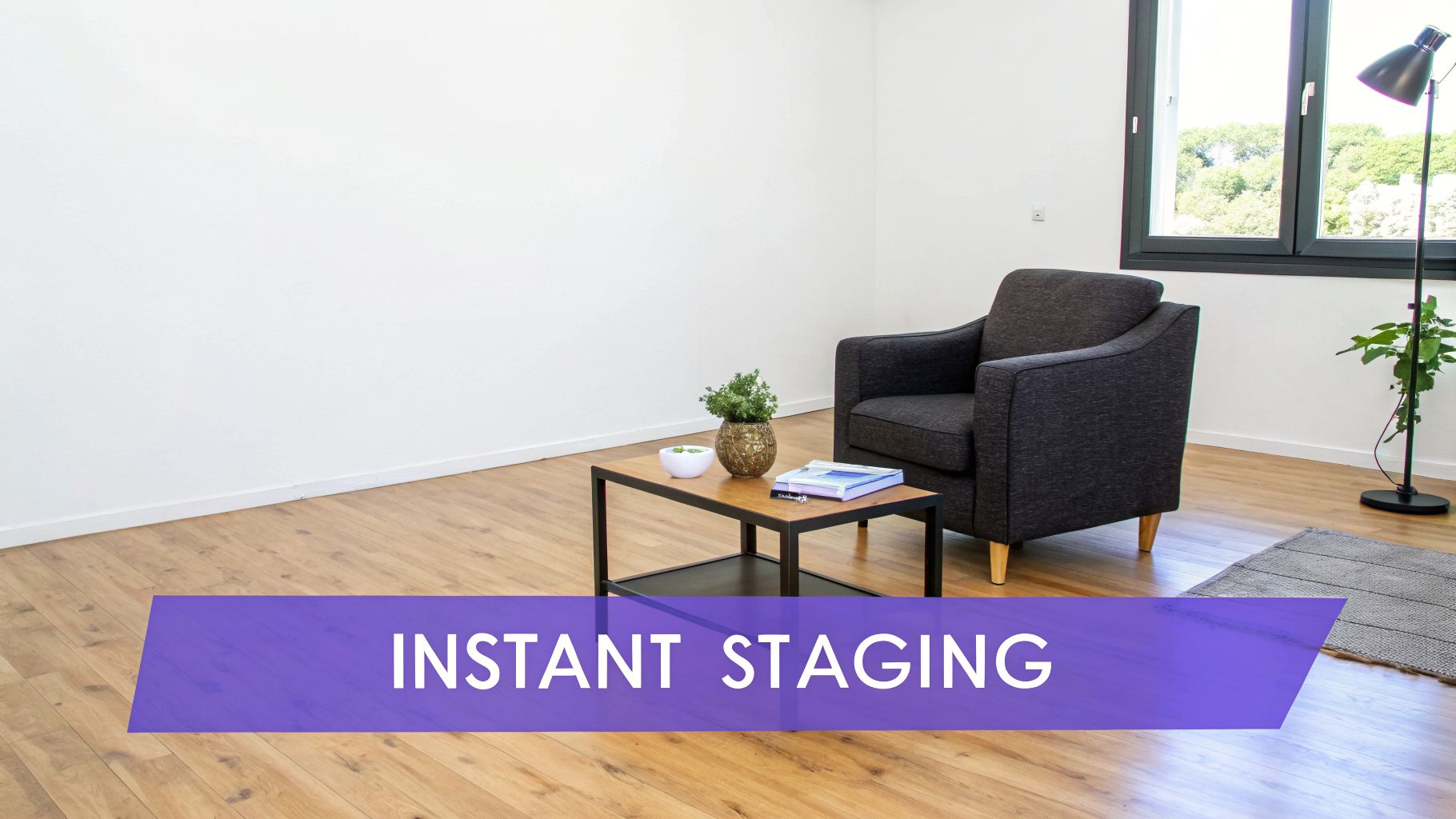
When you're up against a deadline, this approach can be up to 100x faster than the traditional 3D route. It completely changes the dynamic of client meetings, allowing for the kind of real-time design exploration that used to be impossible.
True-to-Scale Visualization in Seconds
Picture this: you're presenting a living room concept, and the client just can't decide on the sofa. In Revit, showing them a few different options means finding or building new models, applying materials, checking the lighting, and kicking off a new render for each one. That’s a lot of billable hours.
With an AI tool, you can just pull up a photo of their room right there in the meeting. In a few clicks, you can place a sofa from West Elm, swap it for a different style from Article, and then try another from Crate & Barrel in a new fabric. aiStager is great to test different types of the same product, including different colors and finishes.
What’s so powerful about a tool like aiStager is that it's the only solution that generates these hyper realistic photos with true dimension rooms and furniture objects. The AI is smart enough to match the scale, perspective, and lighting, so the final image genuinely looks like a photograph, not a clunky composite. You can place a new product in their room just by uploading a photo of the room and a link to a product.
This kind of immediate, realistic feedback helps clients make decisions with confidence, which moves projects forward much faster. It's a perfect way to test out everything from large furniture pieces to the smallest decor items.
The Growing Demand for Fast, Realistic Visuals
This shift toward faster visualization isn't just a niche trend; it's a major move in the market. Architectural visualization already accounts for 41.90% of the entire 3D rendering market's revenue. On top of that, cloud-based rendering is growing at a compound annual growth rate of 22.1%. As highlighted in this in-depth market analysis, numbers like these show just how much designers and real estate professionals rely on high-quality visuals.
For anyone who needs to produce stunning images without getting bogged down in technical settings, AI staging is a huge advantage. It gives you a direct path from an empty room to a fully realized design, whether you're finalizing furniture for a client or creating marketing shots for a new property. You can see how this applies on a larger scale by checking out our guide on rendering a house for more tips.
Common Revit Rendering Questions Answered
Even with the best workflow, you're bound to run into a few bumps in the road when rendering in Revit. I've seen them all over the years. Here are some quick fixes for the most common headaches I hear about, so you can stop troubleshooting and get back to creating.
Why Does My Render Look All Grainy and Noisy?
Graininess, or "noise," almost always comes down to one of two things: not enough light or a quality setting that's too low for the job. When a scene is too dark, the rendering engine has a hard time calculating how light should bounce around, which results in those tell-tale splotchy or spotty areas.
First, check your lighting. Does the space feel naturally well-lit? You should have a good mix of sun and artificial lights. If the lighting is solid, your next stop is the Render dialog box. Try bumping the quality setting up from 'Medium' to 'High.' This gives the renderer more time to work its magic, smoothing out those noisy artifacts for a much cleaner image.
How Can I Speed Up My Renders? They're Taking Forever!
Slow renders are the ultimate productivity killer. To speed things up, you need to give Revit less work to do. Simple as that.
When you're just doing draft renders to check your progress, work with a smaller image size. You don’t need a giant 4K image just to see if your lighting is right. Also, get aggressive with your tools. Use a Section Box and a tight Crop Region to make sure Revit is only rendering what the camera can actually see. This stops it from wasting processing power on hidden geometry.
If you're on a tight deadline, don't forget about Autodesk Cloud Rendering. It offloads the work to their powerful servers, freeing up your machine and delivering results much faster.
What’s the Best Way to Set Up My Interior Lighting?
For interior scenes, balance is everything. Never rely on just a single light source. I always start by choosing the 'Interior: Sun and Artificial' scheme in the render settings. This gives you a great baseline. Try to position the sun so it casts some nice, soft ambient light through your windows—it makes a huge difference.
Next, start placing your artificial lights just as you would in the real world. A common mistake is forgetting to actually turn them on! Double-check the properties for each light fixture to ensure it's on and set an appropriate initial intensity. Before you commit to a final, high-quality render that could take hours, always run a few quick, low-quality drafts to see how everything looks together.
Help! My Custom Materials Aren't Showing Up!
Ah, a classic problem. The first thing to check is your 3D view's visual style. Make sure it's set to 'Realistic,' as this is the only mode that gives you a proper preview of your final render appearance.
If that doesn't solve it, it's time to dive into the Material Editor.
- Head to the 'Graphics' tab and make sure the 'Use Render Appearance' box is checked. This tells Revit to use your pretty texture for rendering instead of the simple shaded color.
- Next, pop over to the 'Appearance' tab and check the file paths for your custom texture maps (the image files for your wood grain, fabric, etc.). If Revit can't find the file on your computer or network, it will default to a plain gray color.
Tired of waiting for Revit to render? aiStager lets you create hyper-realistic, dimensionally-accurate visuals in seconds. Just upload a room photo and a product link to instantly stage any space with real furniture. Learn more and get started for free.